Today lets learn to setup social login on WordPress. Example : Facebook, Twitter, Google, Yahoo, LinkedIn, Windows Live etc. Quick registrations using social networks will enhance user experience. Rather than using the default WordPress registration process where you need to setup username, email address and the password is sent to your email address using which you can log in. Don’t you think logging-in using Facebook or Google will save time?
Most people are always logged in to Facebook , Twitter or Gmail so it will save their time and also your blog would get more comments, likes, shares etc.
How To Log In To WordPress Using A Social Network?
I started BT Forum so that my readers can ask their questions and clarify doubts if any. Once the forum was setup a Facebook log in was really essential hence my hunt for the easiest method began. but, i had no luck,I tried a few plugins but they did not meet my expectations. Finally my friend Jithin Mathew suggested me to try Social login (link)which not only is professional and free but also the most easiest plugin to setup. Using social log in visitors can sign up or log in using Facebook, Twitter, Google, Yahoo, LinkedIn, Windows Live, Foursquare, Skyrock.com, Github.com, OpenID , WordPress.com , PayPal, Steam, Blogger, Disqus etc
Follow the below steps:
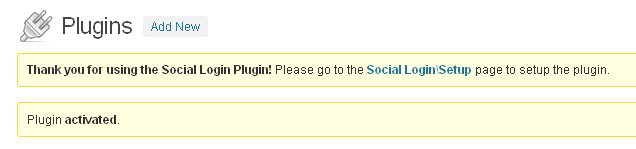
- Download and install social log in plugin. Once the plugin is activated click on social log in setup
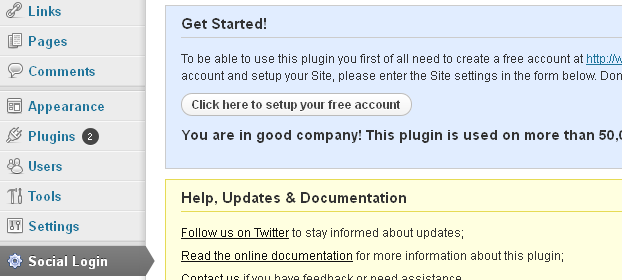
- Click on ” Setup Your Free Account “
- You will be redirected to app.oneall.com, sign up using a social network
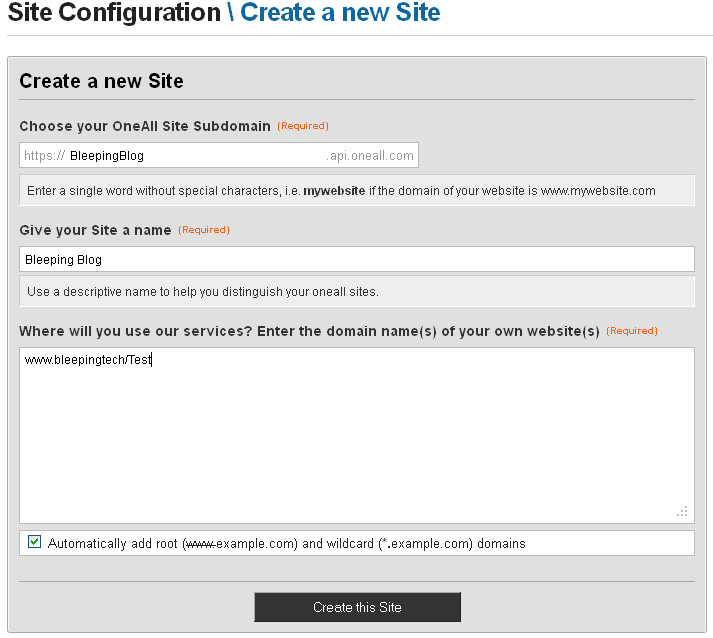
- Click click on Create a new oneall site and enter all the required details and click on “Create this site“
- Now copy paste Subdomain , Public Key and Private Key in your social log in setup page ( WordPress Dashboard)
- Select your favorite social network and save changes
- To display social log in buttons on your side bar ,Go to Appearance –> Widgets –> Social Log in
How to configure social networks?
- Go back to your app.oneall.com account and click on social networks tab
- Select the social network you want to choose

- Example, if you choose Facebook, you will have to create a Facebook app
- Follow the instructions mentioned on that page and validate your app ip and app secret and click register application
- Similarly, you can setup all other social networks
You can watch my video tutorial will I hope will help you and should help you understand better. If you have any doubts please ask your questions via comments





thanks for providing us useful information
Its my pleasure Khush. Glad that the tutorial proved useful.
Its great ! I will use it right now!
Glad you liked it parigyan
Hi Anish thanks for the youtube video and this post.
I’m having one issue as I have decribed below.
I have MyTemplate.php which i use for one of myPage and i redirect user to www(dot)myDomain.com/myPage/ once he login via facebook.
My get token code is on MyTemplate.php but do not get token for www(dot)myDomain.com/myPage/. However, i do get the token if user gets redirect to www(dot)myDomain.com/MyTemplate.php page.
//Get connection_token
$token = $_POST[‘connection_token’];
Please let me know for more information.
I can’t done facebook & google+ & youtube log in access. All want to verify credit card. But I have no credit card. Can I add this on my web site?
There is no need of credit card.